Roomote Control
Roomote Control lets you remotely control tasks running in your local VS Code instance from the Roo Code Cloud web interface – on desktop or mobile – and far away from your computer.
It creates a bidirectional connection between your local VS Code extension and Roo Code Cloud so you can:
- Keep working on long-running tasks after you step away from your computer
- Start tasks remotely, including from your phone
- Answer questions and ensure Roo doesn't get stuck
- Receive push notifications about task progress and questions from Roo
- Get the most from the extension without having any code leave your computer
Think of it as a halfway point between autonomous Cloud Agents and overseeing Roo in the extension.
- Task Sync must be enabled
- Roomote Control must be enabled
- Your IDE must be running and connected to the internet
- Only one task can be active per workspace at a time – but you can have as many workspaces open as you want (or your computer can handle)
Getting Started
-
Connect your Roo Code extension to Roo Code Cloud. Follow Connect the Extension to Cloud or Login/Signup.
-
Ensure Task Sync and Roomote Control are enabled:
- In the IDE: Click the cloud icon and toggle Task Sync first, then Roomote Control in the Cloud panel.
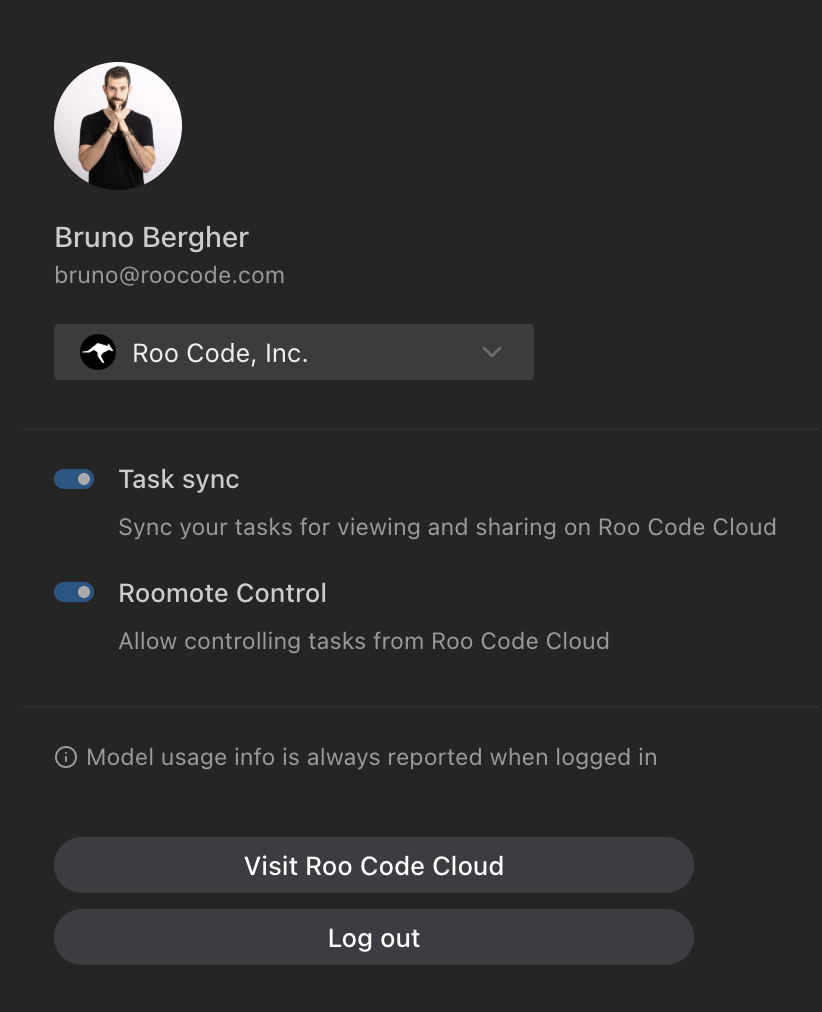
- In the web app: Go to Settings › User and toggle Task Sync and Roomote Control. You may also see inline "Enable …" banners on Home/Task pages.
- In the IDE: Click the cloud icon and toggle Task Sync first, then Roomote Control in the Cloud panel.
-
Your workspace(s) should appear in the sidebar in the web app.
Creating a task
- Click New Task on a connected workspace card in the web app.
- Enter a task description and click Start.
- Watch progress and interact in real time.
If "New Task" is disabled, enable in Settings › User › Roomote Control.
Notifications
You can enable Push Notifications in the web app under Settings to be notified of progress on your tasks.
Permissions & Security
- All communications are encrypted
- Only the user who created a task can interact with it from the browser (send messages, approve/deny)
- Team admins can disable Roomote Control for the account